
 Cart is empty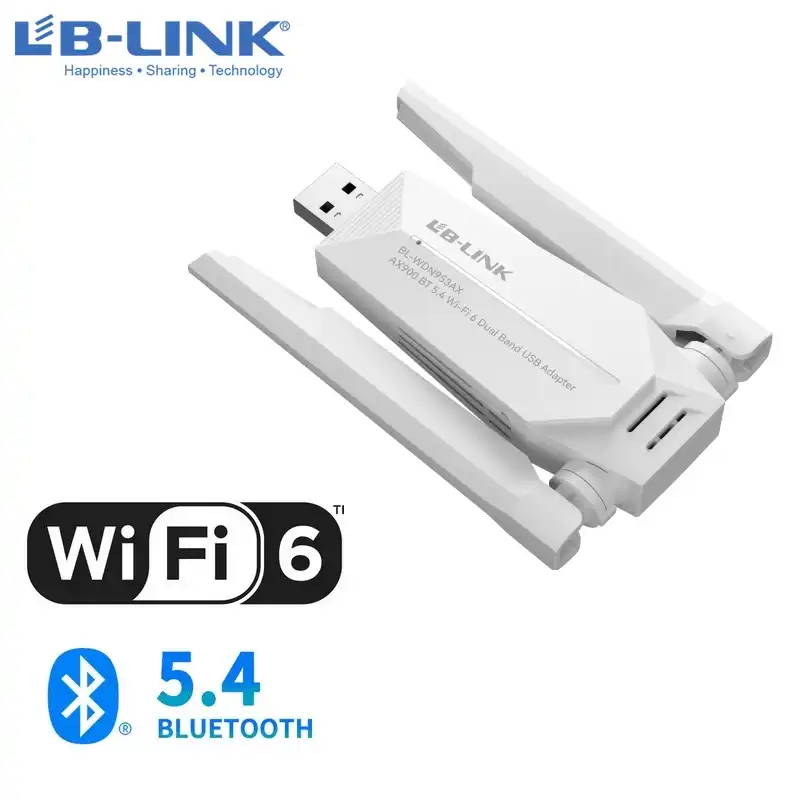

Description
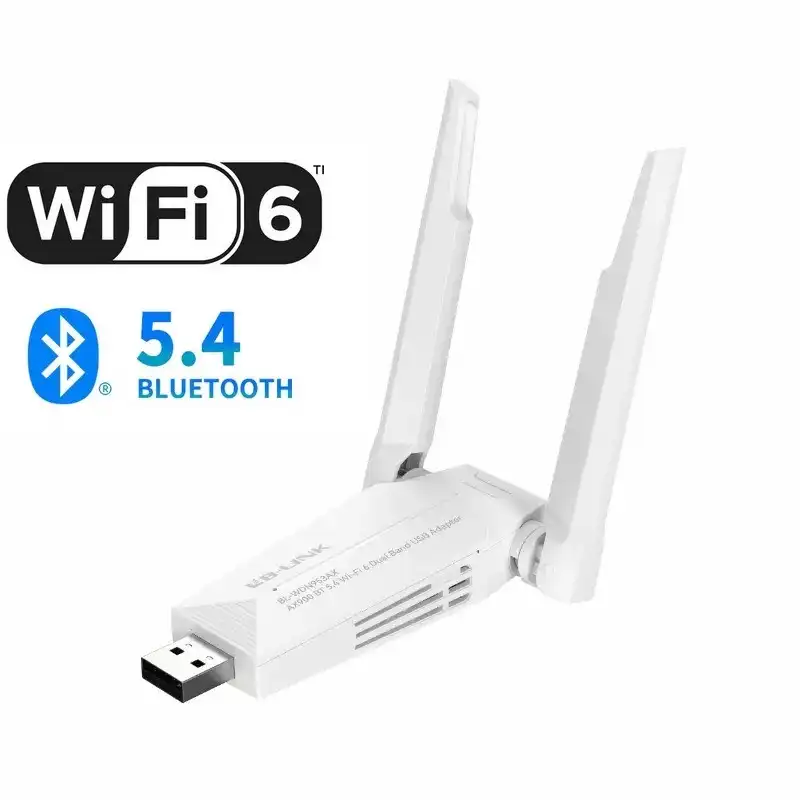
 Image 1: Fenvi AX900 BT5.4 WiFi Adapter
2. Package Contents
Please check the package for the following items:
- 1x Fenvi AX900 BT5.4 USB WiFi Adapter
3. Specifications
| Feature | Detail |
|---|---|
| Brand | fenvi |
| Model | AX900 BT5.4 |
| Wireless Standard | IEEE 802.11ax/ac/a/b/g/n |
| Wireless Communication Standard | 802.11.ax |
| Frequency Bands | 2.4GHz & 5GHz (Dual-Band) |
| Wireless Transmission Rate | Total 900Mbps (2.4GHz: 287Mbps, 5.8GHz: 600Mbps) |
| Bluetooth Protocol | Bluetooth 5.4 |
| Interface Type | USB 2.0 |
| Supported Operating Systems | Windows 10 / Windows 11 |
| Driver Installation | Driver-free (built-in driver) |
| Application | Laptop, Desktop PC |
| Heat Dissipation | No support |
 Image 2: Key Features of AX900 BT5.4 Adapter
4. Setup Guide
Follow these steps to install your Fenvi AX900 BT5.4 WiFi Adapter:
- Plug in the Adapter: Insert the USB WiFi Adapter into an available USB port on your computer. For desktop PCs, it is recommended to use a USB port on the back of the computer case for better performance, as front USB interfaces may sometimes be insufficient or unavailable.
- Access the Driver: The adapter features a ‘driver-free’ installation. This means the necessary drivers are stored on the adapter itself, which acts as a virtual U Disk (or CD Disk). Open ‘This PC’ (or ‘My Computer’) from your desktop.
- Install the Driver: Locate the newly appeared ‘U Disk’ or ‘CD Disk’ drive. Right-click on it and double-click the installation program (e.g., ‘WifiAutoInstallsetup’ or ‘AUTOINSTALL’). Follow the on-screen prompts to complete the driver installation.
- Connect to Wi-Fi: Once the driver is installed, click the WLAN icon (Wi-Fi symbol) on your taskbar. Select your desired Wi-Fi network from the list and enter the password to connect.
 Image 3: Driver Free Installation Steps
5. Operating Instructions
5.1. Connecting to Wi-Fi
- After successful driver installation, your computer will detect available Wi-Fi networks.
- Click the Wi-Fi icon in the system tray (usually bottom-right corner of the screen).
- Select your preferred network (2.4GHz or 5GHz band, if both are available) and click ‘Connect’.
- Enter the network security key (password) if prompted.
5.2. Connecting to Bluetooth Devices
The adapter supports Bluetooth 5.4, allowing simultaneous connection of multiple devices.
- Ensure your Bluetooth device is in pairing mode.
- On your Windows 10/11 PC, go to ‘Settings’ > ‘Bluetooth & devices’ (or ‘Devices’ > ‘Bluetooth & other devices’).
- Turn on Bluetooth and click ‘Add device’ or ‘Add Bluetooth or other device’.
- Select ‘Bluetooth’ and choose your device from the list to pair.
 Image 4: Bluetooth 5.4 Multi-Device Connectivity

Avis
Il n’y a pas encore d’avis.